
Modify EPI File (AN12): Difference between revisions
Piotrkorsak (talk | contribs) No edit summary |
Eugenbeluga (talk | contribs) No edit summary Tag: Reverted |
||
| Line 102: | Line 102: | ||
[[Category:Application Notes]] | [[Category:Application Notes]] | ||
[[Category:FAQ]] | |||
Revision as of 09:50, 13 November 2024
| Affected Products | All congatec x86 CPU products featuring graphics with a local flat panel interface |
|---|
Preface
This Application Note explains how EPI (Embedded Panel Interface) display configuration files can be created or modified with the congatec System Utility (CGUTIL).
Terminology
| Term | Description |
|---|---|
| CGOS | congatec Operating System API. A software driver for the congatec Embedded Features |
| VESA | Video Electronics Standards Association |
| EDID | Extended Display Identification Data |
| EPI | Embedded Panel Interface |
Introduction
The Embedded Panel Interface (EPI) is based on the VESA standard EDID™ (Extended Display Identification Data) 1.3
It defines the software format for display properties and the scalable hardware interface. An EPI file, used to describe the control of a flat panel display, can be easily created with the congatec System Utility (CGUTIL) using the information found in the display‘s datasheet. CGUTIL also provides the ability to write this newly created EPI file to a reserved area in the congatec embedded BIOS or to an EEPROM dedicated for this purpose.
For more information about the Embedded Panel Interface, refer to the EPI Specification that can be found at www.epi-standard.org
The following sections describe how an EPI file can be created and handled using the Windows GUI version of the CGUTIL. This function is not supported by the command line version of CGUTIL (CGUTLCMD.exe)
For detailed information about the congatec System Utility, consult the CGUTIL User's Guide available on the congatec website www.congatec.com
Requirements
The feature described in this Application Note is supported by the congatec System Utility starting from Revision 1.3.0
The congatec System Utility requires a CGOS driver version that is equal to or higher than 1.02.014
The CGOS driver and CGUTIL tool can be downloaded from the congatec website at www.congatec.com
Creating or Modifying EPI Files
There are two different ways to create an EPI file for the display that will be used in the system.
The first one is to generate an EPI file from scratch. For this purpose, the CGUTIL tool can be started in "EPI File Only" mode (see Figure 1 below). The "EPI Data Set Generator" (see Figure 4) will start with default values. These can be modified to the required values.
The second and recommended possibility is to use an existing EPI file that has a similar configuration to the one required. In this case, most of the values can be carried over from the existing file and only the values that differ from that file need be changed. This similar EPI file can be extracted from a congatec BIOS (the following example is based on this approach) or it can be a stand-alone EPI file. The stand-alone EPI file can be loaded for editing (see figure 4: "Load EPI Data Set File"). In this case, no congatec BIOS is required and the CGUTIL tool must be used in "EPI File Only" mode (see figure 1 below).
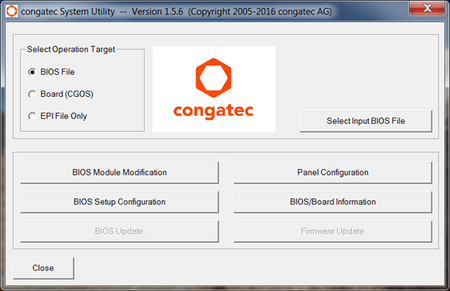
Figure 1: CGUTIL Main Menu
.png)
In the following example, the CGUTIL tool is executed in the "BIOS File" mode. After the BIOS binary file has been selected (Select BIOS File - see Figure 1 above) the configuration module for EPI files (see Figure 2 below) can be entered by pressing the "0Panel Configuration" button in the main window of the CGUTIL tool.
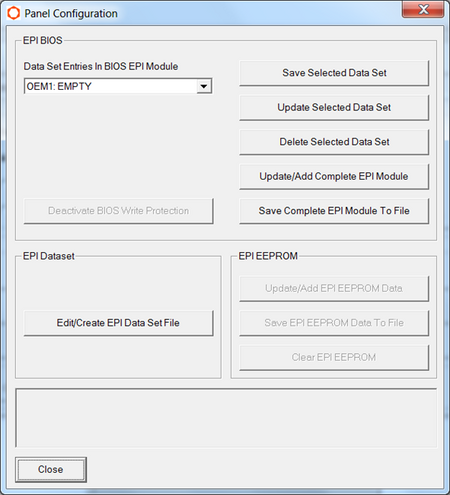
Figure 2: Panel Configuration Menu
.png)
Selecting an EPI File
In the left upper corner of the "Panel configuration" menu ("Data Set Entries In BIOS EPI Module") all EPI files that are included in the selected BIOS can be selected in the drop-down list (see Figure 3 below).
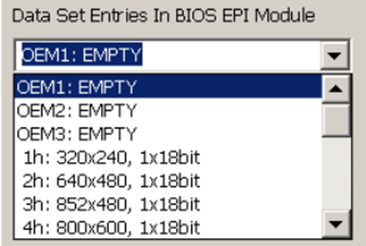
Figure 3: Data Set Entries in BIOS EPI Module
.png)
After the correct file has been selected, press "Edit/Create EPI Data Set File" button to enter the "EPI Data Set Generator" window (see Figure 4 below). In this window, all relevant panel values will be displayed and can be modified according to the requirements of the display.
Modifying EPI data values
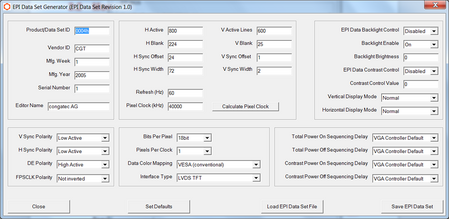
Figure 4: EPI Data Set Generator. EPI file for VGA display 1x18bit LVDS
.png)
The data block displayed in the upper left hand corner contains information about the EPI file itself and the creator of the file. This information should be added so that the origin of the file can be easily determined. The data block displayed in the lower middle contains the additional EPI data that was added to the EDID™ 1.3 data set (see EPI Specification).
All other values correspond to the data specified in the EDID™ 1.3 Specification.
Although the congatec Embedded BIOS reads the complete 128 byte EPI data set, it only needs a subset of the data to correctly initialize the system for the attached flat panel. The most important information is the timing in the upper middle of Figure 4 above. In addition to the polarity of the sync signals (lower left hand corner) and the EPI extension, it fully describes the characteristics of the flat panel. From the upper right hand corner of Figure 4 above, only the EPI Backlight Control is evaluated by the BIOS. It is possible to determine the backlight value within the EPI data set. All of the rest, including the panel"s power sequencing settings, are not supported by the BIOS.
All required values can be taken from the data sheet of the respective LCD panel.
Save an EPI File
After the correct values have been added, the EPI file can be stored by pressing the "Save EPI File Set" button (see Figure 4 above). The CGUTIL tool handles only EPI files in binary file format. When saving the EPI file, the suggested file extension will be *.bin
This extension is only a suggestion and can be changed to any extension you desire. The CGUTIL tool will not consider the file name extension. It will only check the internal structure of the EPI file to ensure that it corresponds to a binary file.
Adding an EPI file to the BIOS
The modified EPI files can be added directly into the BIOS flash memory chip. congatec BIOSes have up to three reserved spaces (OEM1 to OEM3) for customized EPI files. Use the "Data Set Entries In BIOS EPI Module" drop-down list to select one of the "OEM" placeholders where your EPI file will be added. Once the placeholder is selected press the "Update Selected Data Set" button (see Figure 1) and a standard "Open" window will appear where the EPI file that you want to write to the BIOS can be selected. After the selection is completed, pressing the "Open" button will result in the EPI file being written to the BIOS binary file.
Standard EPI data sets (for example: 02h: 640x480, 1x18bit) cannot be updated. In a case whereby one of these data sets has been selected, the "Update Selected Data Set" button will be grayed out.
The functions "Update/Add Complete EPI Module" and "Save Complete EPI Module to File" are intended for internal use only. If you require these functions contact the congatec technical support for assistance.
In a situation where the "BIOS Write Protection" is active, it must be deactivated before the new EPI data set can be added to the BIOS (see application note BIOS Update and Write Protection (AN05)).
Write EPI file to EPI EEPROM
When working on a congatec CPU module (CGUTIL set for "Board (CGOS)" mode, see Figure 1) in a system where an EPI EEPROM is present, it's possible to write the EPI file to this EEPROM using the CGUTIL tool (see note below). After pressing the "Update/Add EPI EEPROM Data" button (see Figure 2), a standard "Open" window will appear where the EPI file that you want to write to the EEPROM can be selected. After the selection is completed, pressing the "Open" button will result in the EPI file being written to the EPI EEPROM. Note that these buttons are grayed out in Figure 2 because the screenshot was taken in "BIOS File" mode.
Note:
See the EPI Specification (www.epi-standard.org) for information about the EPI EEPROM.
It is also possible to read out and save an EPI file that is stored in the EPI EEPROM (Save EPI EEPROM Data To File) or delete the content of the EPI EEPROM (Clear EPI EEPROM) using the CGUTIL tool.
Write EPI file to EPI EEPROM using CGUTLCMD
It is common practice to generate the EPI data file with the GUI version of the congatec System Utility and then use the command line version to write the EPI file to EEPROM. This procedure can be very helpful on the production line of a system where test time is important. For example, booting to MS-DOS or the UEFI Shell and running a simple batch file to update the EEPROM is definitely faster than booting to Windows.
Use cgutlcmd cpanel /ot:board /leep <epifile.bin> to write your panel file to the EEPROM on the carrier board.
For more information about the CGUTLCMD command line support for panel configuration, see the chapter 3.3 of the congatec System Utility user's guide.