
OEM Setup Modification (AN35)
| Affected Products | Products featuring Aptio V UEFI Firmware |
|---|
Preface
This Application Note is intended to explain how the congatec Embedded BIOS setup program can be customized and adapted to the requirements of a particular application. The customization of the BIOS Setup program can be done using the congatec System Utility tool (CGUTIL) in combination with the new congatec utility CgMlfEditor.exe
Terminology
| Term | Description |
| UEFI | Unified Extensible Firmware Interface |
| AMI | American Megatrends, Inc - congatec’s BIOS partner |
| Aptio V | AMIs next generation UEFI BIOS |
| MLF | Menu Layout File |
Introduction
Allowing full access to the BIOS Setup could lead to the risk that the end user can change BIOS settings that may negatively affect the systems functionality or even cause the system to no longer boot. One solution to avoid this is to secure the Setup with a BIOS password. With this solution the user access to the BIOS Setup can be completely blocked.
A more efficient solution is to customize the BIOS Setup program so that the user can only change settings that are not critical to the functionality of the complete system. That means that the end user will be allowed to have access to the BIOS Setup program but the settings that they are not allowed to change will be either not visible to them or grayed out. They will only have access to the settings that they can change that will not jeopardize the system's functionality. BIOS Setup program customization can be done using the congatec System Utility tool (CGUTIL). The following sections will describe how this can be done using the Windows GUI version of the CGUTIL tool. This function is not supported by the command line version of the CGUTIL tool (CGUTLCMD).
For detailed information about the congatec System Utility consult the CGUTIL User's Guide. This can be found at www.congatec.com
With OEM setup modification support you are able to show, hide, gray-out a given setup node and change its title and help text. It is not possible to change the default settings or change the options of a particular setup node.
Refer to the congatec note titled Create OEM Default Map (AN08) to learn how to change the default settings of a congatec embedded BIOS.
Requirements
OEM setup modification requires a congatec embedded BIOS based on AMIs Aptio V UEFI firmware implementation. Only BIOS releases after mid of 2016 may have the support built-in. One can check if the BIOS supports OEM setup modification by looking at the Save & Exit setup submenu. There must be an option for saving the current Setup Layout file by the item Generate Menu Layout File. See Figure 1 below.
In addition to the BIOS support, two utilities are required:
- congatec system utility CGUTIL revision 1.5.6 or later
- congatec setup menu layout editor
CgMlfEditor.exe
Both utilities can be downloaded from the congatec website at www.congatec.com and are avaiable for Windows and Linux.
Note:
The congatec setup menu layout editor CgMlfEditor.exe is also integrated in the CGUTIL 1.5.6 GUI version. See Figure 3 below. Selecting the BIOS Setup Configuration button launches CgMlfEditor.exe
BIOS setup configuration is only supported in BIOS File operation target. It does not work with Board (CGOS) operation target.
OEM Setup Configuration - step by step
Generation of the MLF
The first step is to save the MLF (menu layout file) of the BIOS version you want to change. To do so, simply boot the congatec product using an attached boot device that has a writable file system (i.e. USB stick) and then enter BIOS setup. Go to the Save & Exit submenu and select the Generate Menu Layout File node. The MLF will be stored on the file system.
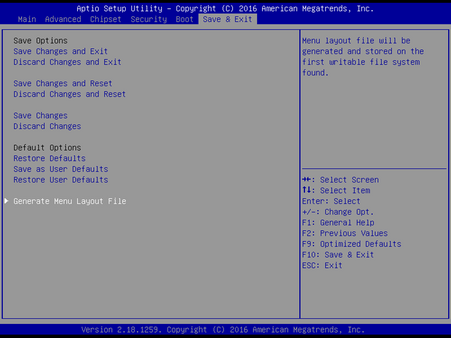
Figure 1: Save & Exit setup sub menu of a BIOS supporting OEM setup configuration
.png)
Note:
The saved MLF can only be used for the BIOS version it was taken from. With future BIOS versions new MLF files have to be generated.
Modify the MLF
Use the congatec setup menu layout editor CgMlfEditor.exe on your development PC to modify the previously stored MLF to meet your needs. Open the previously created MLF file and make all your changes as explained below and then save the MLF under a new name, e.g. myBQSLR009.mlf
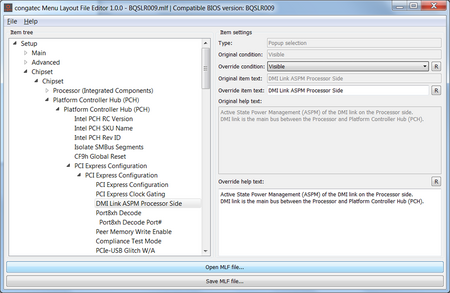
Figure 2: cgMlfEditor Main Menu with an MLF file named BQSLR009.mlf opened
.png)
Item Tree
On the left side the cgMlfEditor shows the setup menu layout in a tree view. Use this tree to navigate to the setup item you want to modify. Note, that in this tree view you can also see setup items that were not visible in the congatec embedded BIOS the MLF file was generated with. These setup items were hidden by either AMI or congatec already. Although the cgMlfEditor utility allows you to do so, you should not make such setup items visible. Also note that the setup submenus are listed twice in the item tree. This is only a cosmetic display issue and has no functional impact.
System Settings
On the right side the cgMlfEditor shows the settings of the selected setup item. The type field shows the type of setup node. The possible types are Popup selection and Numeric value for setup item and Text, Memo, SubMenu and Page for simple strings. The type field is just an information field that cannot be changed.
Underneath the type field are 3 pairs of settings that allow you to modify the setup item:
- Condition (Visible, Suppressed, Hidden, Grayed Out, Unknown) provides the ability to modify the visibility of a setup item.
- Item text provides the ability to modify the prompt text for the setup item.
- Help text provides the ability to modify the help text for the setup item.
The original setting, for all three changeable setup item properties, is also displayed and provides the ability to always return back to the original setting.
Generate an OEM BIOS module from the MLF
Run the CGUTIL GUI version 1.5.6 or later on your development PC.
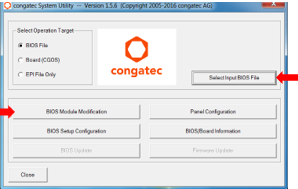
Figure 3: CGUTIL Main Menu
.png)
Select Operational Target BIOS File and the BIOS version you used to create the MLF as Input BIOS File. CGUTIL then prompts you for the file name of the new BIOS you are going to create. Let's name the BIOS OEM1R009.BIN for this example. In the next step select the BIOS Module Modification submenu.
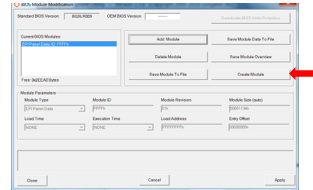
Figure 4: Module Modification menu - Create Module
.png)
Continue with Create Module, select the previously saved myBQSLR009.mlf as input file for the new BIOS module and select module type OEM Setup Menu Control.
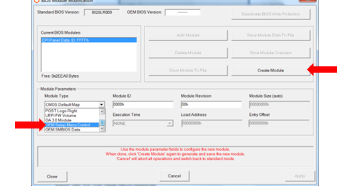
Figure 5: Create OEM Setup Menu Control BIOS module
.png)
Select Create Module again to save the new BIOS module. Name it, for example, myBQSLR009.mod
Add the OEM Setup Menu Control module to the BIOS
The last step is to add the previously created OEM Setup Menu Control module to the BIOS.
Use the Add Module button.
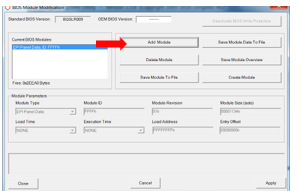
Figure 6: Module Modification menu - Add Module
.png)
Select the BIOS module file.
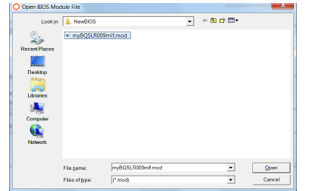
Figure 7: Add the new Module
.png)
At the end double check that the OEM Setup Menu Control module is in the list of Current BIOS modules, assign an OEM BIOS version and Apply the changes. CGUTIL will save the OEM BIOS file.
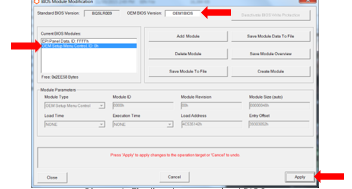
Figure 8: Finalize the customized BIOS
.png)
Congratulations, you have just created a BIOS with a customized BIOS setup program.