This application note provides information on how to set up the Wake-on-LAN feature in Windows 10 or Linux for any congatec module that supports Wake-on-LAN feature.
Terminology
Term
Description
S3
Suspend to RAM
S4
Suspend to Disk
S5
Soft-off
UDP
User Datagram Protocol
WoL
Wake on LAN
Introduction
Wake-on-LAN (WoL) is a standardized feature for waking up a system from S3, S4 or S5 remotely via an Ethernet connection. The system enabled with WoL feature actively listens for a broadcast packet called the magic packet.
The magic packet is a network frame that contains 6 bytes (FF FF FF FF FF FF), followed by 16 repetitions of the MAC address of the device. Usually, the packet is sent via UDP to port 0, 6 or 9.
Before the broadcast can begin, you must:
Configure the system that you plan to wake up first (system that listens for broadcast packet)
Execute the WoL tool on the system that broadcasts the magic packet
Because the magic packets are sent on a port that is below port 1024, the WoL tool must be executed with administrative rights.
Note:
Because magic packets are not routable, the computer that sends the magic packet (broadcaster) must be in the same subnet with the computer that receives the packet (listener).
WoL feature will not work if both devices are in different subnets.
Configuration
Before you can use Wake-on-LAN feature on any operating system, the following configuration steps are required.
Enable the WoL feature in the BIOS setup menu if it is not enabled by default.
Configure the Operating System to support WoL.
For Windows:
Disable the fast startup feature
Enable the Ethernet wake feature
Enable Ethernet "Wake on Magic packet" if disabled by default
For Linux
Configure the Ethernet adapter settings
Enable WoL in BIOS Setup Menu
On some congatec modules, the Wake-on-LAN feature is enabled in the BIOS setup menu by default. On other congatec modules, the user must enable the Wake-on-LAN feature manually in the BIOS setup menu.
The location of the Wake-on-LAN feature in the BIOS setup menu differs from module to module. For the conga-TA7 for example, you can find the WoL feature in:
Advanced → Chipset → PCH → PSE Configuration
Other likely BIOS setup locations for Wake-on-LAN features are:
Advanced → Chipset → PCH
Advanced → [Name of Ethernet Controller] → NIC Configuration
Note:
To enter the congatec BIOS setup menu, press <DEL> or <F2> during POST.
Configure the Operating System
The sections below describe how to enable Wake-on-LAN feature in Windows 10 and Linux.
Enable WoL in Windows 10
When Windows 10 is shut down, the system enters a hybrid shutdown mode by default. This mode is also known as “Fast Startup”.
In Fast Startup mode, the Ethernet adapter is not powered. Therefore, the WoL feature is not supported in Fast Startup mode.
Follow the procedures below to enable WoL feature in Windows 10.
Disable Fast Startup Mode
To support WoL in Windows 10, you must manually disable the Fast Startup mode which is enabled by default:
Go to the Control Panel → Hardware and Sound → Power Options
Click "Choose what the power buttons do"
Clear the "Turn on fast startup (recommended)" check box
Note:
To wake from S3 or S4, ensure the "Sleep" and "Hibernate" check boxes are selected.
Enable Ethernet Wake Feature
The steps below enable the Ethernet adapter to wake the system from sleep.
Open Device Manager
Expand Network adapters
Right-click the [name of your active Ethernet LAN adapter]
Click Properties → The Properties dialog box opens
In the Properties dialog box, click the Power Management tab
Select "Allow this device to wake the computer"
Enable Ethernet Wake on Magic Packet (S3, S4)
The Ethernet Wake on Magic Packet is enabled by default in many Ethernet LAN adapters.
Follow the steps below to check if your Ethernet adapter is enabled or disabled.
In the Properties dialog box, click the Advanced tab
Under "Property", select Wake on Magic Packet
Check the status under "Value". Select Enabled if disabled by default.
Note:
These steps enable Wake on Magic Packet in S3 and S4 modes only.
Wake on Magic Packet in S5 Mode (Intel Network Adapters Only)
By default, Windows 10 supports wake from S3 and wake from S4 only. To wake the system from S5 when using Intel Network adapter, you need the Intel PROSet Adapter Configuration Utility.
The steps to obtain and enable Wake on Magic Packet in S5 mode when using Intel Network adapter are described below:
Download the latest Intel PROSet Adapter Configuration Utility
Unzip the files to a directory on the system
Run the executable file to install the configuration utility. After completion, the configuration interface for your Intel Network adapter displays.
Click Adapter tab
Under "Adapter Settings", select Wake on Magic Packet from power off state.
Check the status under "Current Value". Select Enabled if disabled by default
Enable WoL in Linux
Note:
The congatec modules that feature Elkhart Lake CPUs can send WoL packets in both Windows and Linux Operating Systems. However, the modules cannot receive WoL packets in Linux because the auto-configuration of the Ethernet PHY on the modules is disabled due to compatibility issues.
To wake congatec modules equiped with Elkhart Lake CPU, you must do the following:
Operate the congatec module in Windows 10
Send WoL packets from Etherwake tool (in Linux)
Follow the steps below to enable WoL in Linux.
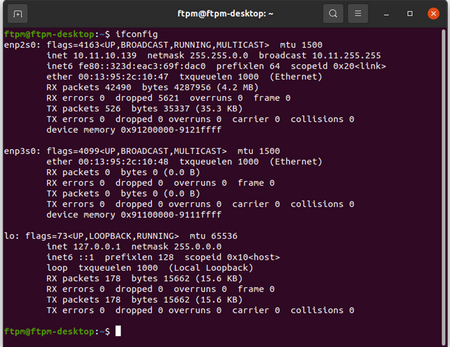
Find the name of the Ethernet Network adapter that will wake the remote system: $ ifconfig
Here, the Ethernet Network adapter is enp0s31f6, distinguishable by its IP and MAC addresses.
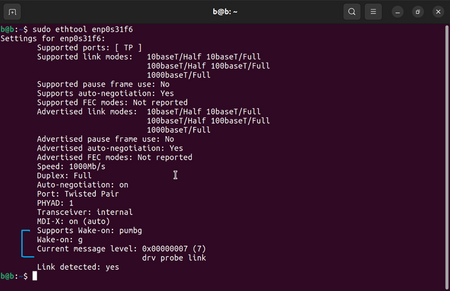
Check if the Element Network adapter supports Wake on Magic Packet by default: $ sudo ethtool [Ethernet Network adapter]
This command displays information about the capabilities of your Ethernet Network adapter.
If the letter next to Wake-on is g, the Wake on Magic Packet is enabled
If the letter is d or any other letter, Wake on Magic Packet is disabled by default. Continue with the next steps to enable Wake on Magic Packet
Save the configuration.
Open the wol.service file:
$ gedit /etc/system/system/wol.service
Copy the following text to the file:
[Unit]
Description=Configure Wake-up on LAN
After=network-online.target

[Service]
Type=oneshot
ExecStart=/usr/sbin/ethtool -s [NIC] wol g

[Install]
WantedBy=basic.target
Save the wol.service file
Note:
You must replace the [NIC] with the name of your Ethernet Network adapter without the brackets.
After restarting the system, the Wake-On feature will always be available after a shutdown.
Wake-on LAN Tools
The following are some of the tools for configuring Wake-on LAN:
Etherwake (Linux)
Wol.exe (Windows 10)
Fusion WoL (Windows 10)
Note:
Use Etherwake WoL tool (Linux) to wake congatec modules equipped with Elkhart Lake CPUs.
Etherwake (Linux)
Etherwake is a Linux command line tool on most Linux-based distributions that can send magic packets to specified MAC-Address. On Fedora and some distributions, the tool may be called ether-wake.
Some of the etherwake-related commands are shown below:
Install etherwake tool:
$ apt install etherwake
Find the name and MAC address of the Ethernet Network adapter:
$ ifconfig
Here, the Ethernet Network adapter is enp0s31f6, distinguishable by its IP and MAC addresses
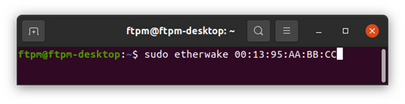
Wake the system
$ Etherwake [MAC-Address]
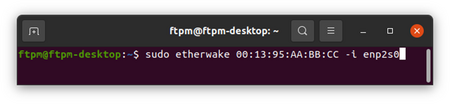
Specify the name of the ethernet adapter if the ethernet adapter is not eth0:
$ Etherwake [MAC-Address] -i [interface]
Wol.exe (Windows 10)
Wol.exe is a Windows 10 DOS command line tool for Wake on LAN. Follow the steps below to wake the remote system using Wol.exe tool:
Download wol.exe
Copy the downloaded wol.exe file to Windows 10 home directory: [Drive]:/Users/[Username]
Open the DOS command prompt of your system.
If the wol.exe file is not stored in Windows 10 home directory, change the DOS command prompt to the directory where the file is stored with either of the methods below:
Type the command and press Enter. H: \>cd [path to the stored wol.exe file]
Drag the folder to the DOS command prompt and press Enter.
Type the command below to wake up the remote system:
wol.exe [MAC address]
Fusion WOL (Windows 10)
Fusion WOL is a Windows 10 application. With Fusion WOL, you can wake a system if you know the IP address or the MAC address.
Follow the steps below to wake the remote system using Fusion WOL application.
Download and install Fusion WoL application.
Go to the installed directory and double click the executable file to open the application. Fusion WOL user interface opens.
Type the IP address of the remote system.
Click Get MAC button to get the MAC address of the remote system.
Click Turn on PC button to wake the remote system. A message appears notifying the user about the success or failure of the Wake event.

.png)
.png)
.png)
.png)
.png)

.png)
.png)
.png)
.png)
.png)

.png)
.png)